Upgrader lets you sign in through Steam to access CS2 item upgrades and offers Upgrade Battles where users can create, join or watch 2-player battles. To understand the full process, separate account access, funding, chance-based play and item delivery: they are different actions with different checks. Upgrader’s terms cover internal-balance top-ups and item withdrawals, but those broad provisions are not a promise of a particular payment method or delivery time. This guide explains the documented features, the general Steam-trade process and what to check before committing money or items.
Understand the route from account to inventory
The useful starting point is not the game screen but the distinction between what the website records and what Steam delivers. A website account identifies you to Upgrader. An internal balance is a platform accounting entry. An item shown on a website is not necessarily already in your Steam inventory. A withdrawal, where available for that item, is the separate process that moves it toward delivery. Keeping these stages separate makes it easier to spot a stalled payment, an unfinished withdrawal or an unexpected trade offer.
| Stage | What it means | Check before continuing |
|---|---|---|
| Steam sign-in | Upgrader documents Steam login for access to upgrades. | The Steam account shown is the account you intend to use. |
| Trade-link setup | A Steam trade URL can let a trading service address an offer to your account. | Follow this step if Upgrader requests a trade URL; do not confuse it with a password. |
| Funding | Upgrader’s terms cover top-ups to an internal balance. | Read the available method, final charge and credited balance before approving. |
| Mode selection | Upgrade and 2-player Battle modes are documented. | Read the stake, outcome conditions and applicable rules. |
| Item withdrawal | The terms cover item withdrawals and Automatic Sale. | Establish the item’s status and withdrawal conditions rather than assuming immediate delivery. |
| Steam delivery | A Steam trade offer specifies what each account gives and receives. | Inspect the actual offer and Steam status, not just a website notification. |
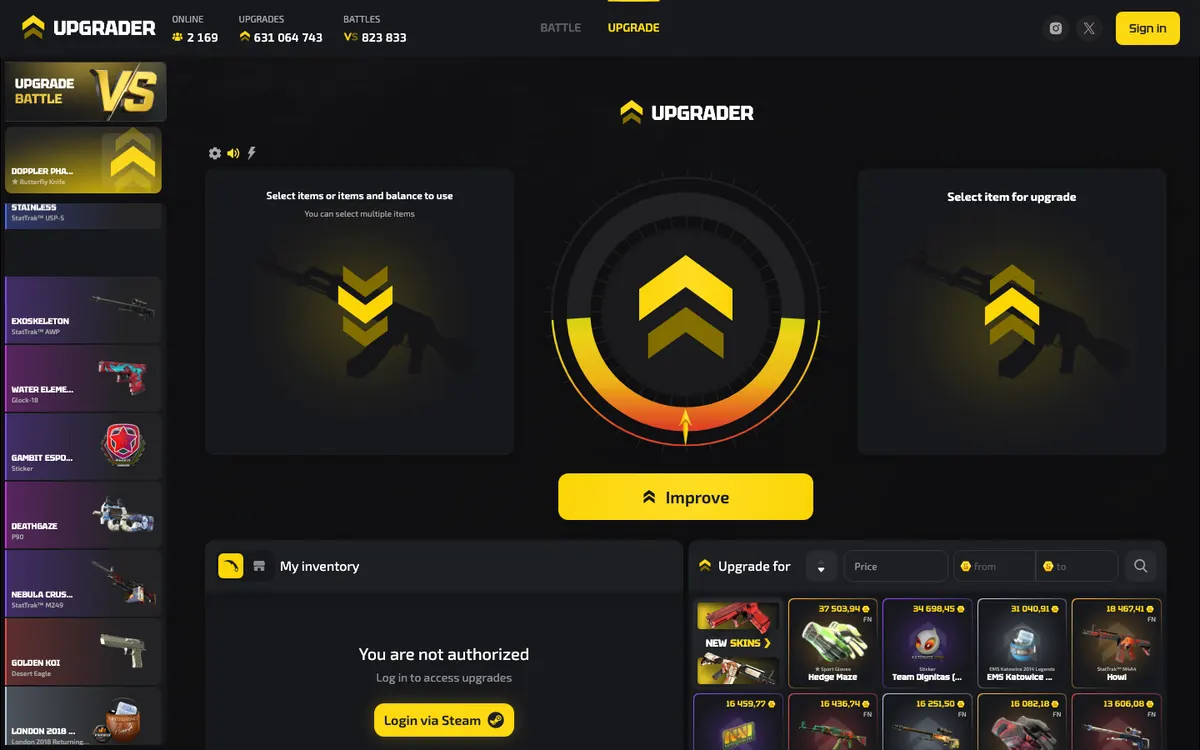
Start with the right Steam account
Steam login is a documented Upgrader feature. Begin at the official Upgrader site, then inspect the Steam sign-in destination before entering credentials. Using Steam to authenticate identifies an account; it does not mean Valve endorses the service. Upgrader’s terms expressly state that the platform and operator are not affiliated with, authorised by, sponsored by or controlled by Valve or Steam.
Before proceeding, read the current eligibility and territorial conditions. Upgrader’s terms allow the operator to set and change territorial, age-related and other restrictions. Do not treat a successful login, an accessible page or an available funding button as permission to use every feature. If the applicable conditions are unclear, resolve that question before transferring anything. A website account is not a substitute for checking local rules.
- Check your Steam sessionConfirm the account identity in Steam before following a sign-in flow. This matters especially on shared computers or browsers that retain an older session.
- Inspect the authentication pageCheck the actual address and account details. A copied Steam logo or familiar-looking profile image does not establish that a page is genuine.
- Return and confirm the accountAfter authentication, check that the profile shown by Upgrader matches the Steam account you intended to use. Resolve a mismatch before funding or linking a trade URL.
- Secure Steam independentlyUse Steam Guard and protect access to the email account associated with Steam. Valve describes the Mobile Authenticator as supporting authentication for trade and market confirmations.
Treat account authentication and trade approval as separate decisions. A legitimate sign-in should not be interpreted as consent to whatever trade arrives later. Likewise, a person claiming to help with login should not need your password, recovery codes or a trade confirmation. If sign-in fails, use the Steam login troubleshooting guide rather than trying links supplied in unsolicited messages.
Add a Steam trade link only where requested
A Steam trade URL lets someone address a trade offer to your account. It is not a payment address, an account password or permission to remove items automatically. The following is general Steam guidance: it does not establish a particular Upgrader settings menu or bot policy. If Upgrader asks for a trade link during account setup or withdrawal, obtain it directly from the Steam account that you used to sign in.
- Open Steam’s trade-offer settingsGo through Steam’s own inventory and trade-offer controls to find the section for who can send you trade offers. Avoid copying a URL from a message or an unrelated profile.
- Copy the current trade URLUse the complete link belonging to the intended account. A profile-page address is not the same thing as a trade URL.
- Save it in the relevant platform fieldIf a trade-link field is presented, paste the URL there and check any validation response. Never substitute your Steam password or an authentication code.
- Check again after changing the linkIf you generate a replacement trade URL in Steam, update services that need the current link before requesting another offer. Changing a link does not itself deliver a pending item.
A valid link does not settle every trading requirement
Steam can show account restrictions, item restrictions or a hold even when the destination URL is correct. Diagnose the condition Steam actually displays instead of repeatedly replacing the link. Also keep the distinction between an inventory preview and an executable trade: an item can be visible without being transferable at that moment. The trade-safety guide explains how to inspect offers and recognize requests that do not belong to the transaction you initiated.
Understand funding before approving a top-up
Upgrader’s terms cover top-ups to an Internal Balance. They also state that the operator does not accept user funds as a deposit, does not accrue interest on that balance and does not provide safekeeping of funds. Although users may search for “Upgrader deposit,” the terms’ description is important: an internal platform balance should not be treated as a bank account or a place to store money.
The general account-and-operations terms do not supply a complete transaction-specific payment-method list, fee schedule, limit table or processing timetable. Do not assume that cards, cryptocurrency, Steam Wallet or skin transfers are available merely because other skin websites use them. Read the method actually offered to your account and the conditions attached to it. If a confirmation screen does not make the charge and resulting credit understandable, stop before authorising it.
| Detail | What to establish | Why it matters |
|---|---|---|
| Payment route | The method and recipient shown in the authenticated funding flow. | A payment instruction sent privately may not belong to your transaction. |
| Charge and credit | What leaves your payment source and what appears as usable platform balance. | The charged amount and credited value need not be interchangeable concepts. |
| Charges or conversion | Any displayed fee, currency conversion or item valuation. | A method label alone does not explain the total cost. |
| Processing status | Whether the transaction is initiated, pending, failed or credited. | An authorization or receipt does not necessarily mean the platform credit is complete. |
| Withdrawal conditions | How value can subsequently leave the platform and in what form. | The existence of top-ups does not establish a matching cash-withdrawal route. |
Keep the funding receipt and platform transaction reference until the credit is reconciled. If a payment appears pending, investigate that transaction rather than submitting another payment as a test. A repeated attempt can create a separate transaction rather than repair the original. For the distinction between payment costs, item valuations and withdrawal conditions, see Upgrader fees and the deposit and withdrawal guide.
Choose a mode by its rules, not its animation
Upgrader documents Upgrade and Battle modes. Its battles page lists 2-player battles that users can create, join or watch. These are chance-based activities, not ordinary item purchases. Selecting a desired item is not equivalent to buying that item, and an animation should not replace reading the stake, chance and outcome conditions.
| Mode | Documented feature | Read before participating |
|---|---|---|
| Upgrade | Steam login provides access to upgrades; the site describes upgrading CS2 items. | Eligible stake, selected target, displayed chance, potential loss and settlement conditions. |
| Battles | Users can create, join or watch 2-player battles. | Entry commitment, how outcomes are compared, tie handling and when participation becomes final. |
Read an upgrade as a chance-based exchange
In a typical skin upgrader, a user risks eligible value for a chance at a target item. That is the general concept, not a substitute for Upgrader’s live rules. The selected target, stake valuation and displayed chance must be read together. A more desirable target does not become an entitlement because it appears in a selector. If the round puts an item or balance at stake, assume that stake can be lost unless the applicable rules explicitly describe a different outcome.
- Identify exactly what the round commits: an item, internal balance or another eligible stake described on screen.
- Check that the target is the intended item variant, not just a familiar thumbnail.
- Read any displayed chance and the rule for an unsuccessful result before confirming.
- Check whether a successful result creates a website-held item or immediately begins a withdrawal.
- Do not repeat a round to recover a previous loss; decide your stopping point independently.
Separate Battle entry from watching
The documented ability to create, join or watch a Battle describes different actions. Before joining, inspect the commitment and settlement rules rather than assuming the format works like another website’s battles. The published mode description does not establish detailed scoring, tie rules or cancellation conditions. Watching can help you understand what the interface displays, but observed results do not demonstrate future odds or establish how a disputed result would be handled. Use the game-mode guide to keep confirmed features separate from generic battle terminology.
Understand what fairness verification can prove
In general, a provably fair system uses a published verification method to connect committed inputs to a result. A useful implementation lets you check the relevant commitment and reproduce the calculation after the required information is revealed. That does not remove the house edge or prove that an item will be delivered. Upgrader-specific seed formats, result calculations and a public verifier are not specified in the published product information. Do not infer verifiability from animation, recent results or the word “random.” The provably fair guide explains the checks a meaningful verification process needs.
Treat withdrawal as a separate delivery process
Upgrader’s terms cover the receipt, storage, use, exchange and withdrawal of items, as well as Automatic Sale. Those provisions do not, by themselves, define a retail marketplace, establish cash payouts or explain every withdrawal condition. Before committing value, read how items are held, when they are eligible for withdrawal and whether any automatic-sale condition applies. A website inventory entry is not evidence that Steam delivery has finished.
- Check the item’s platform statusIdentify the item you want to receive and read any eligibility message. If withdrawal is unavailable, record the stated reason rather than assuming another funding action will unlock it.
- Read the withdrawal confirmationCheck the destination account, selected item, any displayed charge and the stated delivery process. Do not infer a processing deadline from how quickly a previous action completed.
- Inspect any resulting Steam offerIf delivery uses a Steam trade offer, open it through Steam and read both sides. Steam Trade Offers are prepackaged exchanges specifying what each account gives and receives.
- Approve only the expected exchangeCompare the offer with the withdrawal you requested. Stop if it unexpectedly asks for your inventory items, contains a different item or depends on instructions supplied in private chat.
- Confirm completion in SteamCheck the trade status and inventory after the required Steam actions. Keep the platform withdrawal reference until the requested item and its delivery status are reconciled.
Match the item, not just its name
As general CS2 guidance, item identity can involve the weapon and finish, exterior condition, StatTrak designation and other distinguishing attributes. Float describes wear; rarity is a separate classification rather than a promise of a particular market value. Similar thumbnails can therefore represent different items. Read the actual Steam item description and inspect relevant attributes instead of approving from the picture alone. For terminology, use the skin glossary. Do not assume that rules or inventory support extend to Dota 2, Rust or TF2 because those games also have tradable items; consult supported games.
Distinguish a Steam hold from a platform delay
Valve describes a trade hold as a period during which Steam holds items before delivery, allowing an owner to respond to a compromised-account trade. That is different from a withdrawal still waiting inside a website. Look for where the process has reached: no offer created, an offer awaiting action, an explicit Steam hold, or a completed trade. These states require different responses. Use the status displayed for your transaction rather than a generic delivery estimate. Steam Guard is an important security measure, but its presence is not a blanket promise that every transfer will be immediately deliverable.
Find the stalled stage before trying again
Troubleshooting is most effective when you identify the last confirmed event. “It did not work” might mean authentication failed, a payment was authorised but not credited, or a trade is pending in Steam. Avoid repeating financial actions while the original status is unresolved. Refreshing a page and authorising another transaction are not equivalent troubleshooting steps.
| Symptom | Check next | Avoid |
|---|---|---|
| The wrong profile appears after login | Compare the active Steam session with the intended account. | Funding the account before resolving the identity mismatch. |
| A trade URL is rejected | Copy the current trade-offer URL from the same Steam account and read the exact error. | Pasting a profile URL, password or authentication code. |
| A payment left your payment source but balance is unchanged | Compare the receipt, transaction reference and platform status. | Submitting another payment to force the first credit through. |
| A withdrawal has no corresponding Steam offer | Record the platform status and withdrawal reference; check whether any action is requested. | Accepting an unrelated offer because it arrived at a similar time. |
| An offer exists but delivery is unfinished | Read Steam’s pending-action or hold message. | Assuming a website status overrides Steam’s delivery state. |
| The received item appears different | Compare the exact item description, attributes and completed trade record. | Using the thumbnail alone to identify what was transferred. |
Prepare a useful support request
- State the affected stage: login, funding, mode result, withdrawal or Steam delivery.
- Include the relevant transaction, round or withdrawal reference if one is available.
- Quote the exact status or error rather than paraphrasing it as a general failure.
- Provide the event time and timezone so the sequence can be understood.
- Attach relevant screenshots with payment credentials, authentication codes and unrelated personal details removed.
- Explain what you already checked, including whether a corresponding Steam offer exists.
Use a support route reached from the authenticated official service rather than a person who contacts you after a public complaint. A recognisable name or avatar is not proof of authority. Never approve an unrelated trade as a support-verification step. The support guide explains how to organize an issue without exposing account secrets.
Choose the path that matches your goal
If you want a particular skin
Decide whether your goal is acquiring a known item or taking part in chance-based play. An upgrade attempt is not the same transaction as purchasing a specified skin at an agreed price. The Steam Community Market, for comparison, describes buying and selling for Steam Wallet funds and displays transaction-fee lines. Those are Steam’s arrangements, not Upgrader’s. Upgrader’s terms mentioning exchange or Automatic Sale do not establish an equivalent marketplace or cash-out service.
If a payment succeeded but nothing seems usable
Separate the payment receipt from platform credit and feature eligibility. Check that you are still signed into the intended account, then compare the platform transaction status with your receipt. If credit is present but a mode is unavailable, read that feature’s eligibility message instead of assuming the payment failed. Further funding cannot be relied on to resolve an account restriction. Preserve the records and ask about the specific unresolved state.
If your priority is leaving with an item
Check withdrawal conditions before taking further chances with a website-held item or balance. Once you decide to withdraw, follow the delivery status rather than continuing to play while waiting. If you notice yourself increasing stakes, chasing losses or spending money set aside for essentials, stop. The responsible-gambling guide covers budgeting and warning signs. The clearest decision may be not to fund or participate at all.
Final checklist before you proceed
- You meet the applicable age and location requirements and understand that chance-based play carries a house edge.
- The Steam account and any requested trade URL belong to the intended account.
- You understand the funding charge, credited balance and available withdrawal conditions.
- You have read the chosen mode’s stake and settlement rules rather than relying on the animation.
- You can distinguish a platform item, a withdrawal request, a Steam offer and completed delivery.
- You will inspect the actual trade and keep relevant references until the transaction is resolved.
- You have a spending boundary and will stop rather than try to recover losses.
Frequently asked questions
No matching questions found.
How does Upgrader work for a beginner?
Do I need a Steam account and trade link?
Can I fund Upgrader with a card, cryptocurrency or skins?
What is the difference between Upgrade and Battles?
How do I withdraw an item from Upgrader?
How long does an Upgrader withdrawal take?
Why is a Steam trade still pending after I accepted it?
Is Upgrader provably fair?
This independent guide is for informational purposes and is not affiliated with Upgrader.