Steam login is the documented way to access upgrades, and the site offers CS2 upgrades and Upgrade Battles. Start by checking the destination, then confirm the correct Steam account before continuing. If sign-in fails, the important distinction is whether the problem is with Steam authentication, your browser session or an account restriction—not whether you need to send items to unlock access.
The safe route to your Upgrader account
- Open the official destination directlyEnter https://upgrader.pro/en yourself or use a bookmark you previously checked. Do not choose a login destination solely because it appears in an advertisement, a search result or a message from someone using the Upgrader name.
- Choose the site's Steam sign-in optionLet the official site start the authentication flow. Do not use a separate password form supplied by a stranger or install a browser extension offered as a requirement for logging in.
- Check the Steam authentication screenInspect the actual destination before entering credentials or authorising a request. A Steam logo, familiar avatar or copied page design is not proof of authenticity. Read what the screen is asking you to authorise.
- Confirm the intended Steam accountIf Steam already recognizes an account, check that it is yours and that it is the account you meant to use. Shared browsers and old sessions can make it easy to continue with the wrong identity.
- Return to Upgrader and check the resultAllow the browser to finish returning to the official site. Check the displayed account before doing anything with items or balance. If you remain signed out, use the symptom guide below rather than repeatedly submitting credentials.
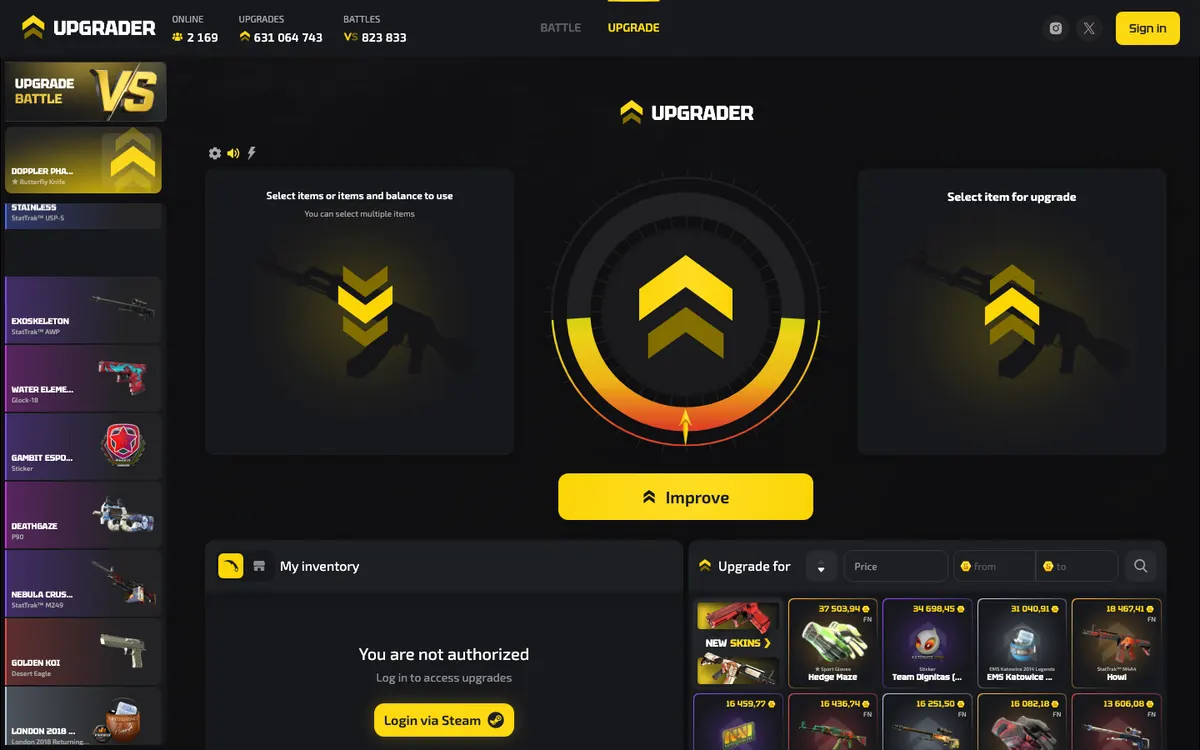
The homepage image is a visual reference, not a live login screen or a security check. Page layouts can change, and a fraudulent page can copy their appearance. The address bar and the action you are authorizing matter more than matching a screenshot.
Understand what Steam sign-in does—and does not do
Steam sign-in identifies the Steam account you are using to a third-party service. In a legitimate authentication flow, you authenticate with Steam rather than handing your Steam password to that service. Upgrader documents Steam login, but this should not be confused with Valve endorsing the platform: Upgrader's terms expressly state that the platform and operator are not affiliated with, authorised by, sponsored by or controlled by Valve or Steam. Familiar Steam branding is therefore not a substitute for assessing the destination and request.
| Action | What it concerns | What to check |
|---|---|---|
| Steam sign-in | Establishing which Steam account is accessing the service. | The genuine Steam destination, the account shown and the authentication request. |
| Steam Guard authentication | Protecting account access through an additional authentication step. | Whether you initiated the request and whether its details match your activity. |
| Entering a Steam trade link | Providing information used to address trade offers, not proving ownership through a password. | Where the link is being entered and whether you intended to set up item trading. |
| Accepting a trade offer | Approving a proposed exchange of items between accounts. | The recipient and the exact contents on both sides of the offer. |
| An internal balance operation | Activity recorded within the platform rather than Steam authentication. | The relevant account history and the terms for that operation. |
This distinction is useful when an error appears after login. A missing item is not automatically an authentication failure, and a trade hold does not necessarily mean you are signed out. Upgrader's terms cover internal balances and item operations, but they do not turn every account issue into a Steam problem. For the broader account-to-item process, see how Upgrader works.
Check the destination before approving anything
Begin at the official Upgrader address, https://upgrader.pro/en. When authentication takes you elsewhere, inspect the destination independently instead of assuming every window opened from a page is safe. A secure-connection symbol only indicates an encrypted connection to the address displayed; it does not prove that the address belongs to the organisation you intended to visit. If a screen hides its address or prevents you from checking it, stop and restart from a browser window you control.
Look beyond the logo and account name
Impersonation can copy more than a page design. An attacker can reuse a support avatar, a familiar display name or text that looks like an account warning. Those details do not establish control of the real service. Inspect the complete hostname rather than a recognisable word somewhere in the address. Treat unexpected requests as a separate security decision, especially if someone has contacted you first and is trying to guide your login.
- Start from the address you checked, not a login link supplied in a direct message.
- Do not disclose a Steam password, recovery code or authenticator code to another person.
- Do not accept an item transfer described as account verification, repair or recovery.
- Decline requests to install remote-access software or an unfamiliar authentication extension.
- Stop if the request changes from signing in to approving an action you did not initiate.
Treat QR codes as authentication requests
If a genuine Steam flow offers QR sign-in, understand that scanning and approving it can authorise a session. A QR code is not harmless merely because it avoids typing a password. Do not scan a login code sent by someone claiming to be support, and do not approve a request to help another person verify an account. Read the details shown in your Steam app. Reject an unexpected request and return to the login flow you initiated yourself.
Find the right fix for your login symptom
The table below is general troubleshooting guidance, not a list of confirmed Upgrader faults. Identify where the flow stops before changing settings. That makes it easier to choose a useful test and avoids resetting unrelated account security controls.
| What happens | What it may indicate | What to do next |
|---|---|---|
| Selecting Steam sign-in does nothing | A blocked window, script restriction or browser issue. | Check blocked-window notices. Retry in an updated browser without weakening protections across unrelated sites. |
| Steam rejects your credentials | A Steam account-access issue, or a destination that needs checking. | Verify the Steam destination. If genuine, use Steam's own account-recovery route rather than sending credentials to Upgrader support. |
| Steam approval succeeds, but Upgrader still shows you as signed out | A return-flow or browser-session problem. | Continue in the same browser, close stale login tabs and restart from the official homepage. |
| The page repeatedly returns to sign-in | Session data may not be persisting, or different accounts or browser contexts may be involved. | Check cookie restrictions and the Steam identity in use. Test a clean browser session before changing account settings. |
| A Steam Guard request does not arrive | The request may concern a different account, or the app or connection may need attention. | Check the account in the Steam app and its connectivity. Do not approve an unrelated request that happens to appear. |
| A restriction or eligibility message appears | Authentication may have worked, while platform access remains restricted. | Read the exact message and consult the official site's available support route. Do not mask your location to bypass it. |
| The profile opens, but inventory or balance looks wrong | An account mismatch or a separate item or platform-record issue. | Verify the Steam account first, then compare relevant history. Repeated authentication is not an item-recovery procedure. |
| A stranger asks for items or codes to restore login | A serious impersonation warning. | Stop the interaction. Preserve the message and secure Steam through its own account-security tools if you disclosed anything. |
Repair browser problems without weakening account security
When sign-in loops back to the starting page
A sign-in flow needs the browser to retain enough session information to connect its start and finish. Opening the first step in a messaging app and finishing in a separate browser can interrupt that continuity. Start again in a normal browser tab and keep the flow there. Close duplicate authentication tabs so you do not return through an older request. If necessary, clear site-specific browsing data and retry, understanding that doing so can sign you out. Avoid clearing unrelated saved data unless there is a reason.
When the page is blank or the sign-in control is unresponsive
Check that your browser is current and that the page has finished loading. Content blockers and strict privacy settings can sometimes interrupt legitimate sign-in components, but that is a possibility to test—not a reason to disable everything. Use a clean browser profile or another browser you trust to isolate the issue. If you adjust an extension, make the change narrowly and restore it afterward. A private window can help isolate stored data, although its stricter privacy settings can also affect authentication, so its result is not conclusive.
When mobile and desktop behave differently
Compare the browser context before blaming the account. An in-app browser may handle redirects differently from your main browser, and the Steam account active on a computer may differ from the one in your phone app. Open the official address directly in your preferred browser and verify the identities on both devices. Keep track of which device initiated the request. Do not approve every prompt simply to make the desktop page move forward. If only one device fails, include that distinction in any support report.
On a shared computer, avoid saving credentials and sign out when finished. Closing a tab is not the same as ending an account session. If the device is not trustworthy, postpone the login rather than treating a private window as protection against malicious software or someone controlling the computer.
Handle Steam Guard and account recovery through Steam
Steam Guard adds protection around Steam account access. Valve also documents the Mobile Authenticator's role in trade and market confirmations. These are related security functions, but the request still needs to match the action you initiated. A login prompt should not be treated as permission to confirm an item transfer. The guidance in this section concerns Steam generally; it is not an additional set of Upgrader account requirements.
If a prompt or code is missing
Check that you are looking at the correct Steam account and the authentication method Steam is actually requesting. Confirm that the device has a working connection and that the app is functioning normally. Read any message on the genuine Steam screen before trying again. Repeatedly starting new login attempts can make it harder to tell which prompt belongs to which request. Do not share a code with someone who claims they can complete the process for you. If the problem persists, follow Steam's recovery instructions instead of removing protections as an experiment.
If you lost your phone, password or account access
Use Steam Support for Steam account recovery. Upgrader support is not a substitute for proving account ownership to Steam, and another person should not need your authenticator recovery information to assist with a platform issue. Secure the email account associated with Steam as well if you suspect it is compromised. Changing a password and restoring an authenticator are account-security actions; their consequences for trading should be checked in Steam's current notices. Do not rely on a promised recovery time from an unsolicited helper or pay an item-based fee to regain access.
Signed in, but the account or inventory looks wrong?
First establish which Steam account is active. A browser can retain a Steam session you did not expect, especially on a shared device or after switching between accounts. Compare the account identity, not just an avatar or display name, because those visual details can be similar or change. Do not add items or balance to test whether you are in the right account. If necessary, sign out and begin again deliberately with the intended Steam identity.
- If the identity is wrong, correct the Steam session before attempting any item or balance operation.
- If the identity is correct but an inventory is absent, read the current inventory and item-eligibility messages rather than assuming authentication failed.
- If an item was involved in a trade, compare the Steam offer status and trade history with the action you intended.
- If a platform balance or history entry differs from your expectation, preserve the relevant record and contact support through the official site.
- If a trade link needs checking, obtain it through Steam's own trade-offer settings. A trade link is not a replacement for authentication and should not be posted publicly.
Trade holds are different from login failures
Valve describes a trade hold as a period during which Steam holds items before delivery, giving owners of compromised accounts an opportunity to cancel fraudulent trades. That is a Steam trading safeguard, not evidence that your Upgrader login is broken. Steam trade offers specify items on both sides, so review the actual offer rather than trusting a chat description. Check the current status displayed by Steam; do not assume a general explanation supplies the timing for your particular trade. For more context, read trade safety or deposit and withdrawal guidance.
If you may have used a fake login page
Stop interacting with the suspicious page or person. Your next step depends on what you disclosed or approved. Merely seeing a page is different from entering a password, authorizing a session or confirming a trade. Do not let someone keep you occupied with further verification while you postpone securing the account.
- Move to a trusted route and deviceOpen Steam or Steam Support independently. If the device itself may be compromised, use a different trusted device for recovery. Do not follow a recovery link supplied by the same person or page that caused the concern.
- Secure the credentials you exposedIf you entered a Steam password on a suspicious page, change it through Steam's genuine account controls. Change reused passwords elsewhere where relevant. If email access may also be compromised, secure that account so it cannot be used to undo your recovery.
- Review account accessUse Steam's available security controls to inspect account access and end unfamiliar sessions where possible. Treat any unexpected authorisation as significant even if you did not type a password. Follow Steam's current guidance for suspected account compromise.
- Inspect trades and confirmationsReview pending offers, confirmations and recent trade history. Cancel unwanted pending actions where Steam allows it. Do not accept a second trade described as reversing the first or moving items to a safe account.
- Preserve evidence and report the issueKeep the suspicious address, messages and relevant account or trade records. Report Steam compromise through Steam, and notify Upgrader through its official site's available support route if the platform account or activity is also affected.
Do not assume recovery of the login will reverse an item transfer. Restoring access, investigating a platform record and addressing a completed Steam trade are different matters. Avoid anyone promising to recover everything in exchange for another item transfer. The useful priority is to stop further unauthorised activity and provide the appropriate support service with a clear record.
Prepare a useful login-support request
Use the support route available from the official Upgrader site for a platform-specific issue. For a Steam password, authenticator or account-recovery problem, use Steam Support. Upgrader does not publish a detailed login-error guide or a login-repair deadline to rely on. A concise report is more useful than repeated messages saying only that login is broken. Explain the point where the process stops and what you have already tested.
- Describe the sequence: opening Upgrader, starting Steam sign-in, completing authentication and returning—or failing to return—to the site.
- Include the exact error wording and the approximate time it occurred, with your time zone.
- State your device, operating system and browser, including whether you used an in-app browser.
- Explain whether Steam itself is accessible and whether the same issue occurs in another trusted browser.
- Provide the relevant public account identifier when the official support process requests it; never supply account credentials.
- List the troubleshooting changes already made so support does not need to repeat the same tests.
- Attach a redacted screenshot if useful, excluding passwords, codes, private browser tabs and sensitive information in the address bar.
Do not post a full authentication return URL in a public discussion: URLs can contain information that should not be shared. Preserve the original privately if needed, but redact sensitive parameters from screenshots. If an item operation is also involved, distinguish its reference from the login error rather than combining them into a vague missing-account report. See the support guide for help organizing an account or transaction enquiry.
When access restrictions—not authentication—are the issue
An account can authenticate successfully and still be unable to use a service. Upgrader's terms allow the operator to set and change territorial, age-related and other restrictions. If the site displays a restriction, record its wording and seek clarification through the official route. Do not create substitute identities, mask your location or borrow an account to bypass it. Equally, do not infer that a successful Steam login proves legal availability or eligibility for every activity.
If you are trying to regain access because you feel compelled to continue playing or recover losses, pause the troubleshooting. Restoring a session does not require resuming play. The responsible-play guide explains practical boundaries and warning signs. Account security remains important even when the right decision is not to use the service.
Quick checklist before you retry
- You started at https://upgrader.pro/en, not a message link or an unchecked search advertisement.
- The Steam account in the authentication flow is the account you actually intend to use.
- You understand the request being approved and have not confused login with an item transfer.
- The browser can finish the return flow without switching between unrelated browser contexts.
- You have separated a Steam access problem from a platform session, inventory, balance or eligibility issue.
- If the problem persists, you have the error wording and a safe, redacted record ready for the appropriate support service.
Upgrader login FAQ
No matching questions found.
How do I log in to Upgrader with Steam?
Can I log in to Upgrader without Steam?
Why does Upgrader keep sending me back to login?
Should I give Upgrader support my Steam Guard code?
Do I need to send skins to verify my login?
Does a Steam trade hold stop me from signing in?
Why is the wrong Steam account showing on Upgrader?
Who should I contact if I cannot log in?
This independent guide is for informational purposes and is not affiliated with Upgrader.