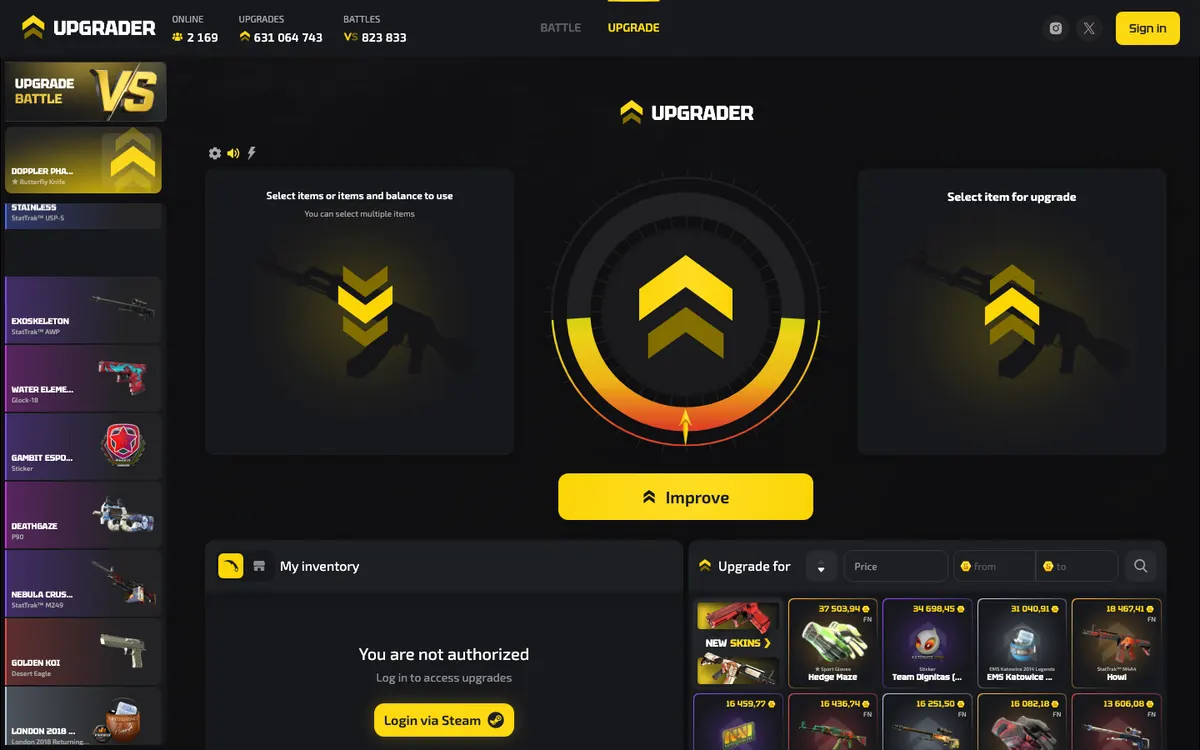
Upgrader at a glance
The useful distinction is between what the product offers and what its legal terms cover. Upgrader’s visible product description centres on CS2 upgrades, while the Battles page adds a competitive format. Its User Agreement also covers account registration, top-ups to an Internal Balance, item storage, exchange, withdrawal and automatic sale. Those contractual categories do not, by themselves, establish a separate buy-and-sell marketplace, a cash-withdrawal service or a particular payment method. Treat each transaction screen as something to understand before accepting, rather than assuming that familiar wording means the same thing across skin platforms.
Find the right route for your goal
- You want to understand skin upgrades: start with the difference between committing value to a chance-based outcome and directly purchasing a known item. The former can end without the item you wanted.
- You are interested in Battles: Upgrader lists a 2-player format with create, join and watch options. Check the particular battle’s entry requirements, settlement rules and potential losses before taking part.
- You already own a skin you want to keep: do not treat an upgrade as a harmless inventory-management action. Keep items with personal or replacement value outside any transaction you are not prepared to lose.
- You want a specific skin without a random outcome: compare direct-purchase routes separately. Upgrader’s upgrade functionality is not evidence that it provides an ordinary retail purchase option.
- You want to sell skins or withdraw money: establish whether the available action delivers an item, changes an internal balance or sends money through an external payment service. These are different outcomes.
- You only need account information: read the Steam login guide for general background. Signing in, authorising a trade and committing an item to a game are separate matters.
This goal-first approach prevents a common mistake: choosing a platform by its name, then discovering that its transaction model does not match what you wanted. For a broader assessment of the product, terms and practical limitations, see the Upgrader review.
Understand Upgrade and Battles before choosing a mode
Upgrade: a chance-based outcome, not a direct swap
Upgrader describes its core service as upgrading CS2 items. In the general skin-upgrade model, a user puts existing value at stake for a chance of receiving an outcome with a different value. This differs fundamentally from an agreed item-for-item exchange: the desired result is uncertain, and the starting value can be lost. A more expensive target should not be interpreted as a better deal simply because its displayed price is higher. The meaningful comparison includes the chance of success, the amount at risk, the valuation of both sides and any applicable charges.
That describes the category, not a promise about every Upgrader control or calculation. Before accepting an operation, identify what will leave your possession, what result counts as success and what happens after an unsuccessful outcome. If the interface does not make those points understandable, do not fill in the blanks using another platform’s rules.
Battles: check the rules behind the shared format
Upgrader’s Battles page lists 2-player battles and options to create, join or watch them. Those are useful navigation facts, but they do not explain every settlement condition. A battle label alone does not establish how a winner is determined, how ties or interruptions are handled, or whether an entry can be cancelled. Watching can help you understand the presentation, but an observed result is not a substitute for written rules and says nothing about the likelihood of your next result. Check the format itself rather than assuming that every skin site uses the same battle system.
| Activity | What is established | What to distinguish |
|---|---|---|
| Upgrader Upgrade | CS2 item upgrading is the core product. | A chance-based upgrade is not a guaranteed exchange for a chosen item. |
| Upgrader Battles | The page lists 2-player battles that users can create, join or watch. | The lobby format does not explain every entry, cancellation or settlement rule. |
| Direct skin purchase | A general market route where the buyer selects a known item. | This is a comparison category, not a confirmed Upgrader marketplace feature. |
| Case opening | A different chance-based category involving an uncertain item outcome. | Upgrade and Battles listings do not establish that Upgrader offers a case catalogue. |
The game-modes guide separates these formats further. Do not assume that crash, roulette or other familiar skin-site games are available simply because a platform offers upgrades.
Check the game and the exact skin, not just its name
Upgrader’s product description is specifically about CS2. Do not assume that Dota 2, Rust or TF2 inventories are supported because those games also have tradable items on Steam. Steam account access and game-specific item acceptance are separate matters. Even within a supported game, an item’s presence in your inventory does not prove that it is currently tradable or eligible for a particular platform operation. The supported-games guide explains this distinction without treating the wider Steam economy as Upgrader’s own catalogue.
For CS2 skins generally, the weapon and finish name are only part of the identity. Wear describes the appearance of the finish; a float value helps identify its wear condition. Pattern differences can also matter to collectors. Rarity is a separate classification and should not be confused with condition, while StatTrak identifies a distinct item variant. These characteristics can affect how comparable an item is to another listing with a similar name. None of them, by themselves, establishes a better chance in an upgrade.
When comparing an inventory item with a displayed target or a Steam trade offer, read the complete item description. A familiar thumbnail is not enough to establish that the condition, variant or other relevant properties match. This is ordinary item-identification guidance, not a claim that Upgrader prices every characteristic separately. If terminology is unfamiliar, use the skin-trading glossary before valuing or transferring an item.
Approach your first visit in a clear order
You can assess the product’s features and terms without making a financial commitment. This is a general overview, not guidance on accessing or using Upgrader. The documented account entry point is Steam login; account access, value transfer, gameplay and item delivery are distinct matters to consider when reviewing the terms.
- Check access and the rules firstRead the current terms and confirm that your location and age permit use. Upgrader’s terms allow territorial, age-related and other restrictions to be set or changed. Access to a page is not legal permission to participate, and a working login does not settle eligibility.
- Separate Steam sign-in from trade approvalSteam authentication identifies an account, while trade approval is a separate matter. Be cautious of messages claiming that a trade is necessary to resolve a login problem.
- Inspect inventory and trade readinessCheck the item’s Steam status, account security settings and any restriction shown by Steam. If a service requests a trade link, understand what that link does before supplying it. Do not assume that an item being visible in an inventory means it can move immediately.
- Understand the balance or item transactionUpgrader’s terms refer to an Internal Balance. The terms and transaction information should make clear what value is involved and what conditions apply; a platform balance is not equivalent to money already available through a bank or payment wallet.
- Review the operation before confirmingThe terms for upgrades and Battles should explain entry conditions, possible outcomes, chance information and settlement. Chance-based play carries a risk of loss; a more expensive target does not justify taking on more risk.
- Check the final record and any deliveryKeep the operation reference and inspect any resulting Steam offer independently. Confirm the actual items and direction of transfer before accepting. If the result, balance entry or delivery does not match what you understood, preserve the details and seek clarification rather than repeating the transaction.
For a more detailed walkthrough of these separate stages, see how Upgrader works. The important principle is that reaching the next screen is not a reason to skip understanding the current one.
Keep balances, item values and fees separate
Upgrader’s terms describe top-ups to an Internal Balance, but the operator also states that it does not accept user funds as a deposit, accrue interest on that balance or provide safekeeping of funds. This distinction matters even when users casually call a top-up a deposit. A platform balance is governed by the platform’s terms and available operations; it is not a bank account or a promise that the displayed amount can be withdrawn through any method you choose.
| Value layer | Practical question | Why the distinction matters |
|---|---|---|
| Incoming item valuation | What credit is offered for the exact item? | A familiar skin name or external listing does not establish the platform’s valuation. |
| Internal Balance | What can this balance be used for, and under which terms? | Upgrader says it is not a deposit held for safekeeping and does not accrue interest. |
| Target item valuation | Which exact variant is displayed, and at what platform value? | A different condition or variant can make an apparent price comparison misleading. |
| Transaction charges | Does the confirmation show any charge or adjustment? | An explicit fee and a difference between item valuations are not the same thing. |
| Chance-based cost | What is at risk, and what probability governs the outcome? | A house edge is different from a separately displayed transaction fee. |
| Withdrawal or automatic sale | Will the action deliver an item or change its value into balance? | The terms cover both concepts, but they should not be treated as interchangeable. |
The product description does not specify a complete fee schedule, payment-method list, withdrawal minimum or processing-time promise. Do not substitute figures from another service. Check the live transaction details and current terms before transferring value. The word withdrawal also needs an object: withdrawing a skin is not the same as withdrawing money. Likewise, a contractual reference to automatic sale does not establish an instant cash-sale facility available on demand.
For comparison, the Steam Community Market operates using Steam Wallet funds and displays its own fee lines. Those are Steam’s arrangements, not Upgrader’s charges. Avoid comparing a Steam Market price with an internal balance figure as though both necessarily represent the same usable amount. See Upgrader fees and pricing and deposits and withdrawals for the relevant distinctions.
Protect the Steam side of every transaction
A trade link is not a password or an approval
In Steam trading generally, a trade link helps another party address a trade offer to your account. It is not your Steam password and does not itself approve a transfer. If a platform requests one, obtain it from your own Steam account rather than copying an address from a chat message. Supplying a trade link is still a separate decision from accepting whatever offer arrives later. Never send passwords, authenticator codes or account-recovery credentials to someone claiming to arrange delivery.
Read the offer itself, not the message around it
Valve describes a Trade Offer as a prepackaged trade in which items are selected for both sides. That makes the actual offer the place to inspect what leaves and what arrives. A profile name, avatar or reassuring message is not enough. An outgoing item with nothing shown on the other side requires an explanation that matches the intended transaction; it should never be accepted simply because a stranger describes it as a security check. Equally, a supposed withdrawal should not quietly require you to send unrelated inventory.
Distinguish Steam restrictions from platform processing
Steam Guard’s Mobile Authenticator supports trade and market confirmations. Steam may also apply restrictions affecting when an item can move. Valve explains a trade hold as a period during which Steam holds items before delivery, helping owners of compromised accounts cancel fraudulent trades. These are Steam mechanisms, not an Upgrader fee or a platform processing estimate. Read the current message attached to your account or trade rather than relying on an old duration quoted online.
- If an item is visible but cannot be selected, inspect its Steam status before assuming the platform has lost access to your inventory.
- If an offer differs from the item or direction you expected, leave it unaccepted and compare it with the transaction record.
- If a message asks for an extra trade to unlock delivery, stop and verify the request through a support route reached independently.
- If Steam displays a restriction, do not send replacement items to a different account as a supposed workaround.
Upgrader’s terms state that the platform and operator are not affiliated with, authorised by, sponsored by or controlled by Valve or Steam. Steam login should therefore not be read as Valve endorsement. The trade-safety guide covers these checks in more detail.
Read probability and fairness as different questions
A probability describes how likely an outcome is under the rules. A house edge describes the operator’s mathematical advantage over repeated play. Neither tells you what will happen on a particular attempt. A displayed possible return is incomplete without its probability, and a sequence of unsuccessful results does not establish that success is due next. Repeating an operation can increase the total value exposed to loss; it does not turn an uncertain activity into a dependable way to obtain a skin.
Upgrader’s headline product information does not publish a numerical house edge or a full probability formula. Do not assign it a typical figure borrowed from another upgrader. A calculation also needs consistent valuations: comparing a platform’s target value with a different marketplace’s selling price can produce a misleading impression. Before participating, look for a clear explanation of the chance attached to the actual operation and what value is lost if it fails.
Provably fair is a separate technical concept. In a common implementation, an operator commits to hidden input through a cryptographic hash before play. After the relevant input is revealed, a user can check the commitment and reproduce a result using the published method. The details matter: the inputs, their order and the conversion from generated data to an outcome must all be specified. An animation, a result history or the word random is not equivalent to that verification process.
That is a general explanation, not a claim that Upgrader implements that particular system. Its product description does not set out a public seed-and-hash verification procedure. Even a correctly verifiable result would not remove the house edge, guarantee item delivery or settle questions about fees and account security. The provably-fair guide explains what a meaningful verification method should let you check.
Check eligibility and set boundaries before play
Chance-based skin play is 18+ and carries a house edge; stricter local requirements may apply. Upgrader’s terms reserve the operator’s ability to change territorial, age-related and other restrictions. Do not infer availability from the language of a page or the ability to load it. Using an item rather than money does not automatically remove gambling-law concerns. In Australia, online casino and slot services to Australians and their advertising are prohibited under the Interactive Gambling Act; the ACMA administers the Act.
That is general regulatory context, not a licensing determination about Upgrader. Independently of legal access, decide what you can afford to lose and how long you intend to spend. Include the replacement value of skins, not just newly added money. Stop if you begin chasing a loss, borrowing to continue or hiding activity. Do not assume a specific account-limit or self-exclusion tool is available without checking. In Australia, Gambling Help Online can be contacted on 1800 858 858. The responsible-play guide explains practical boundaries and how to seek help when play stops feeling manageable.
Know what to do when something does not match
Steam sign-in returns you to a logged-out page
First identify whether Steam authentication completed or the browser failed to retain the session. Check the destination and ordinary browser cookie settings before trying again. Do not follow a private message offering a special login link, and do not transfer items to repair an authentication issue.
An inventory item is missing or unavailable
Check that you are using the intended Steam account and inspecting the correct game inventory. Then read the item’s current trading status. A game mismatch, item restriction and platform eligibility issue are different problems; adding balance does not diagnose any of them.
Open sectionA balance changed but you cannot identify the operation
Preserve the visible transaction history, time, item details and any operation reference. Distinguish a completed game, a pending transfer and an automatic-sale entry before drawing a conclusion. Do not repeat the action merely to see whether it happens again.
Open sectionYou need clarification from support
Prepare a concise description, the affected operation reference and screenshots with sensitive information removed. Ask what stage the operation has reached and what action, if any, is required from you. Never include passwords, authenticator codes or recovery credentials in a support message.
Open sectionQuick checklist before committing value
Upgrader’s documented offering is straightforward at the category level: CS2 upgrades, Steam login and 2-player Battles. The decision to use it still depends on understanding the particular operation, not just recognising those features.
- Confirm that your age and location permit participation.
- Identify the exact item, variant and value you are putting at risk.
- Understand the outcome rules and any displayed probability or charge.
- Keep Steam authentication separate from trade approval.
- Know whether the intended result is an item, internal balance or another explicitly stated form of delivery.
- Set a loss boundary and stop when it is reached.
- Leave any unclear operation unconfirmed until its terms are understandable.
Upgrader questions answered
No matching questions found.
What is Upgrader?
What is the official Upgrader website?
Does Upgrader support Dota 2, Rust or TF2 skins?
How do Upgrader Battles work?
Can I buy or sell skins on Upgrader?
Which payment methods, fees and withdrawal times apply?
Is Upgrader provably fair or guaranteed to deliver a better skin?
Does Steam login mean Valve endorses Upgrader?
This independent guide is for informational purposes and is not affiliated with Upgrader.