To protect your CS2 items when using Upgrader, check the official destination, secure your Steam account and inspect every trade before confirming it. Upgrader documents Steam sign-in, identifies its operator and offers Upgrade and Battle modes. Those are useful details to check, not a guarantee of safe transactions or successful withdrawals. Account security, Steam restrictions and the risks of chance-based play are separate issues. This guide explains what to verify, how trade links and Steam Guard work, and when to stop rather than approve an uncertain offer. Chance-based play is 18+ and carries a house edge.
Start with what Upgrader actually documents
Upgrader describes itself as a CS2 skin upgrader. Its public terms cover account registration, an Internal Balance, platform operations and the receipt, storage, exchange, withdrawal and automatic sale of items. That describes the scope of the service; it does not establish how quickly a particular item will arrive or which Steam account should send an offer. Keep the distinction between a documented feature and a transaction-specific assurance.
- Official destination
- https://upgrader.pro/en
- Account access
- Steam sign-in
- Operator named in the terms
- SYNAPICE LTD, company number HE 492848
- Relationship with Steam
- The terms state that Upgrader and its operator are not affiliated with, authorized by, sponsored by or controlled by Valve or Steam.
A named company and Steam authentication are not substitutes for checking an individual offer. Upgrader’s public terms do not specify a detailed bot-verification procedure or a fixed Steam delivery timetable. Do not fill those blanks with promises from social-media accounts, screenshots or other users. For the broader product assessment, see the Upgrader review.
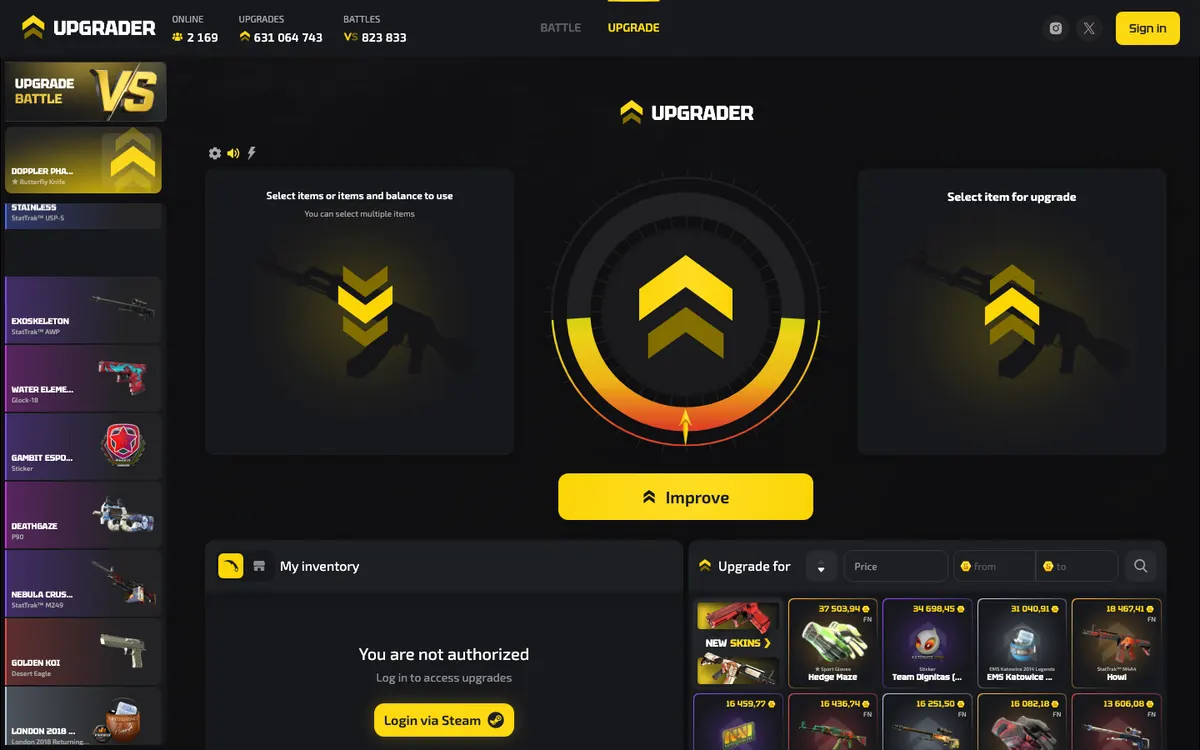
A home-page screenshot can help with orientation, but copied artwork is not proof that a live page or trade offer is genuine. Check the address and the transaction itself.
Verify the destination before signing in through Steam
Upgrader’s documented official destination is https://upgrader.pro/en. Open that address directly or use a bookmark you created after checking it. A familiar logo, a high search placement or an encrypted connection does not establish that a page belongs to the service. A phishing site can reproduce a convincing login screen while sending your credentials elsewhere.
- Check the complete addressRead the hostname rather than looking only for the word Upgrader. Extra words, substituted letters and misleading subdomains can disguise a different destination.
- Inspect the Steam authentication pageBefore entering Steam credentials, check that authentication is taking place on a genuine Steam page. Do not trust a drawn address bar inside a page or a screenshot of a login window.
- Treat unexpected approval requests as a stop signalApprove only a sign-in you initiated and understand. An unexpected Steam Guard prompt or a login QR code sent through chat is not something to accept just to continue a conversation.
- Return without making a tradeSigning in and transferring items are separate decisions. After authentication, check the account and intended action before opening a deposit, withdrawal or upgrade workflow.
Steam sign-in establishes an authentication connection; it is not Valve’s recommendation of the external service. Upgrader’s own terms explicitly separate the platform from Valve and Steam. If a page asks you to install a browser extension, share a recovery code or send an item to complete login, stop and examine the request. See Steam login guidance for account-access troubleshooting.
Use your trade link without treating it as a password
A Steam trade link lets another account send you a trade offer without first becoming your friend. It is an address for receiving offers, not permission to accept them. Knowing your trade URL alone does not authorize someone to confirm a transfer from your inventory. Even so, avoid posting it indiscriminately: unsolicited offers can create confusion around a legitimate transaction.
Find your trade URL through Steam’s Inventory and Trade Offers settings, under the option for who can send you trade offers. Copy it from Steam rather than from a message. If an official account workflow requests it, check the destination before pasting. This is general Steam guidance, not a claim that Upgrader uses a particular trade-link form or validation process.
- Copy the complete trade URL, including its parameters; a shortened or incomplete link may not identify the intended recipient correctly.
- Keep your Steam password, recovery information and authentication codes separate from your trade URL.
- If you replace your trade URL in Steam, update any legitimate service that still stores the old version.
- Do not create a Steam Web API key simply because someone says it is needed to verify a routine trade.
- Review unexpected offers independently, even when they arrive immediately after you shared a trade link.
Keep Steam Guard active and read every confirmation
Steam Guard adds an authentication layer around account access and trade confirmations. Valve describes its Mobile Authenticator as providing two-factor authentication for trade and market confirmations. Its purpose is to give you another opportunity to reject an action you did not authorise. It cannot protect a trade that you knowingly approve without checking the recipient and items.
Secure the email account used for Steam as well as Steam itself, and keep recovery information somewhere private. Avoid making security changes under pressure from a trading conversation. Changes to authentication or account recovery can affect trading eligibility; the notice shown by Steam is the relevant instruction for your account, not a generic claim that every user must wait the same period.
Separate trade holds, item restrictions and protection notices
A Steam trade hold means Steam holds items before delivery. Valve explains that this gives owners of compromised accounts an opportunity to cancel fraudulent trades. That is different from a restriction preventing an item from being traded, and different again from a platform waiting to credit an account. Calling all of these situations a withdrawal delay makes troubleshooting harder.
| Situation | What it means | What to check |
|---|---|---|
| Steam trade hold | Steam is holding items before delivery under its account-security rules. | Read the hold notice and status in Steam. Do not rely on a chat message claiming the hold can be removed. |
| Item trading restriction | The item is not currently eligible for the proposed transfer. | Read the restriction displayed for that specific item rather than assuming every inventory item has the same availability. |
| Trade-protection notice | Steam is displaying conditions or protections relevant to the transaction. | Read the current notice, including any consequences it describes. Do not treat it as equivalent to a delivery promise. |
| Pending Steam offer | The proposed trade has not reached a completed status. | Check whether it needs your action, was cancelled or is no longer valid before requesting a replacement. |
| Platform processing | The service has not completed its own account or item-handling step. | Compare the platform record with Steam’s trade history. A completed Steam transfer does not by itself explain an uncredited platform balance. |
Do not apply an old forum timetable to a current CS2 transaction. Steam’s rules and item notices can change, and the applicable restriction depends on the account and item involved. If a protection or reversal option appears, read its scope before acting; do not assume it covers every loss or has no consequences. Upgrader cannot make an item transferable merely by describing it as ready.
Verify a bot offer by the transaction, not its avatar
Automated trading accounts are commonly called bots. Their names, avatars and profile descriptions can be copied, so an account calling itself an Upgrader bot is not sufficient identification. Instead of trusting those appearance cues, reconcile the live Steam offer with a transaction you initiated through the official service, using any identifying details that the actual workflow displays.
- Start with your own transactionKnow whether you are sending an item or receiving one. An unsolicited offer should not become legitimate merely because it mentions a recent activity.
- Compare available identifiersMatch the recipient profile, offer reference or other transaction details if the official workflow supplies them. A matching display name alone is not enough.
- Inspect both sides of the offerSteam Trade Offers specify the items on each side. Check exactly what leaves your inventory and what enters it, including an intentionally empty side where relevant.
- Recheck after any cancellationA replacement offer is a new decision. Do not assume that a near-identical offer following a cancellation has the same recipient or contents.
- Stop if the evidence does not matchLeave the offer unaccepted while you resolve the mismatch. Do not use an extra item transfer to test whether a recipient is genuine.
An empty receiving side is not automatically evidence of fraud: an item deposit into an external account system can involve sending an item without receiving another inside the same Steam offer. It also means Steam is not promising the external credit. Confirm the purpose and recipient through the actual account workflow; a promise written in the offer message is not a replacement for that check.
Do not confuse a trade with a market sale
A Steam Trade Offer and a Steam Community Market sale are different mechanisms. Trade Offers define the items exchanged between accounts. The Community Market instead buys and sells items for Steam Wallet funds, with fees shown in its purchase dialog. Neither mechanism establishes an external service’s cash-payout terms. If someone says that accepting an item-only offer will automatically pay your bank account, that claim needs a separate, clearly documented transaction process.
Likewise, Upgrader’s references to item exchange and automatic sale do not by themselves explain a cash-out route. Before sending an item, establish what you expect in return: another Steam item, a platform balance adjustment or something else explicitly supported by the workflow. Do not infer the destination of value from the word sale alone.
The most useful warning sign is a request that changes the purpose of your transaction. You intended to sign in or move a particular item, but someone now wants a security transfer, a verification payment or access to your device. Treat the changed request as a new and untrusted action.
The most useful warning sign is a request that changes the purpose of your transaction. You intended to sign in or move a particular item, but someone now wants a security transfer, a verification payment or access to your device. Treat the changed request as a new and untrusted action.
| Request or situation | Why it is dangerous | Safer response |
|---|---|---|
| Send an item to verify its authenticity | The proposed verification requires giving another account possession of the item. | Do not transfer it. Check item information within Steam and use the service’s own transaction records. |
| Move your inventory to a safe account | The person offering protection may control the destination. | Secure your existing account through Steam rather than transferring items to a stranger. |
| Share a Steam Guard or recovery code | The request could help someone access the account or defeat a security check. | Keep codes private and review account security independently. |
| Accept a replacement bot after a cancelled offer | Copied names can make a different recipient appear familiar. | Reconcile the replacement with the official workflow and inspect every item again. |
| Pay or send another item to release a hold | A separate transfer does not establish that a Steam restriction will disappear. | Read the restriction inside Steam and reject unofficial release instructions. |
| Install software or allow remote access for support | The requester could gain access to sessions, credentials or confirmations. | Do not grant access. Open the official destination yourself and locate any available assistance there. |
Do not let a conversation move the evidence off-platform. A convincing direct message, group invitation or screen recording does not authenticate a trade recipient. If someone claims to represent Upgrader, independently locate the relevant account workflow or assistance route instead of using the link they provide.
Check the exact CS2 item before approving
Correct account identification is only part of trade safety. Similar-looking CS2 skins can differ in exterior condition, StatTrak status, pattern or attached stickers. A familiar thumbnail is not enough to establish that the offered item matches the one you intended to receive. Compare the full item description and inspect the item where those details matter.
Wear describes a skin’s exterior condition; rarity describes its category, not the trustworthiness of a seller. Float and pattern details can distinguish items sharing a market name. None of these properties proves a claimed cash value, and an external price label is not a Steam promise. Learn the terminology in the skin-trading glossary, then compare the actual offer rather than relying on a chat description.
Decide which item details are essential
Before opening the confirmation, decide whether you expect a particular item or any item matching a stated description. If a specific pattern, wear characteristic or sticker combination influenced your decision, preserve that description and compare it with the delivered offer. A matching weapon and skin name may not settle the question. If you cannot inspect an essential characteristic, leave the trade unaccepted until it is clarified. This is especially important when someone proposes a substitute: a different item is a changed transaction, not merely an administrative correction.
Troubleshoot a missing or delayed trade without duplicating it
A missing item can reflect different states: no offer was created, an offer remains pending, Steam is holding delivery, or the transfer completed but an external record has not updated. Identify the state before cancelling, retrying or sending anything else. Repeated attempts can create additional offers and make the original problem harder to trace.
- No offer appears in SteamCheck the correct Steam account, the current trade URL if relevant, and any message in the platform workflow. Do not accept an unrelated offer merely because you expected something to arrive.
- An offer is pendingOpen its status directly in Steam. Determine whether action is required or whether the offer has been cancelled. Check the contents again before completing any outstanding confirmation.
- Steam shows a hold or restrictionRecord the exact wording and follow the current Steam notice. A platform status label cannot override the condition shown on your account or item.
- Steam shows completion but the account record differsSave the trade reference, item description, recipient profile and the relevant platform record. Do not send the item’s replacement value or another skin to trigger credit.
- The offer has unfamiliar contentsReject or leave it unaccepted, depending on its status, and investigate independently. A delayed transaction is not a reason to lower your recipient or item checks.
Also check for an account mismatch before changing security settings. Your browser may be signed into a different Steam account from the one open in the mobile app, or a saved trade URL may belong to an account you previously used. Compare the profile associated with each stage. Do not disable Steam Guard or repeatedly replace the trade link to solve a problem that is actually the wrong account.
Build a transaction record without exposing secrets
A useful report separates what you intended from what each system recorded. State whether you were sending or receiving an item, then describe the first point where the records diverged. Preserve the original evidence privately. If you need to share a screenshot publicly, redact trade-link tokens, personal information and unrelated account details; send necessary identifiers only through an independently located assistance route.
- Record the platform transaction reference, if displayed, separately from the Steam offer or trade reference.
- Include the event time and time zone so the sequence can be reconstructed.
- Capture the exact status wording, affected item description and relevant counterparty profile.
- Explain whether you approved a mobile confirmation and whether any offer was cancelled or replaced.
- Never include a password, recovery code, authentication code or browser session data in the report.
Locate assistance from the official destination if available. The deposit and withdrawal guide explains the separate platform and Steam stages, while support guidance covers what to include in a useful report.
If you suspect account compromise, stop trading first
Unexpected confirmations, unfamiliar sessions or an offer that changes recipient are reasons to pause. Do not try to rescue the situation through instructions from the same person who introduced the suspicious link. Use Steam’s own security and recovery tools, preferably from a device you believe is clean. Keep evidence, but prioritise preventing further unauthorised actions.
- Stop approving login requests, trade confirmations and requests to move items.
- Review pending trades in Steam and cancel unauthorized offers where the interface permits.
- Secure Steam and the connected email account; review signed-in devices and revoke unfamiliar access.
- Review Steam Web API access and remove any key you did not intentionally create or no longer need.
- Check the device and browser for suspicious extensions or software before resuming sensitive activity.
- Use Steam Support for account recovery and Steam-side options; report the relevant platform transaction separately.
Do not assume that an item can always be recovered, or that no recovery option can ever apply. The available action depends on the current Steam status and rules. Follow the options Steam actually presents. Anyone promising recovery in exchange for credentials, remote access or another item transfer should be treated as a new security threat.
Keep account safety separate from gambling and balance risk
A correctly authenticated account can still lose items through an authorized chance-based action. Upgrader offers Upgrade and Battle modes; these are separate from simply receiving a Steam trade. Chance-based play is 18+ and carries a house edge. Decide beforehand what you can afford to lose, and do not use further upgrades to recover a loss or resolve a withdrawal problem.
Provably fair systems address a narrower question: whether a result can be checked against the system’s disclosed inputs and cryptographic commitments. They do not authenticate a Steam recipient, establish the safety of account custody or guarantee withdrawal. Do not infer Upgrader’s implementation from how another site works. See the provably fair guide for what a meaningful verification process needs to disclose.
Upgrader’s terms say the operator does not accept user funds as a deposit, does not accrue interest on the Internal Balance and does not provide safekeeping of funds. Read the rules for balances and item handling before transferring value. A displayed platform balance, an item in Steam and a pending withdrawal are different states; do not treat them as interchangeable.
Availability is also separate from technical safety. Upgrader’s terms allow territorial, age-related and other restrictions. In Australia, online casino and slot services to Australians, and their advertising, are prohibited; the ACMA is the regulator. Check applicable local rules and use responsible-play guidance if play is becoming difficult to control. For support, contact Gambling Help Online on 1800 858 858.
Before confirming: a practical safety checklist
- The session began at the official Upgrader destination, not through a stranger’s login or support link.
- You initiated the transaction and understand whether items are leaving or entering your Steam inventory.
- The recipient and item details match the official workflow wherever it supplies identifying information.
- You have read the actual Steam offer and any mobile confirmation, not just a platform status label.
- Any hold, restriction or protection notice is understood before you proceed.
- Nobody has asked for passwords, recovery codes, remote access or a separate verification transfer.
- You know how to preserve the transaction record and will stop if a mismatch remains unresolved.
If a check fails, leave the trade unaccepted while you investigate. A legitimate-looking interface does not make an unexplained transfer necessary.
Upgrader trade-safety FAQ
No matching questions found.
Is Upgrader safe to use with my Steam account?
Can someone steal my skins with my Steam trade link?
Does Steam Guard make an Upgrader trade safe?
How do I know whether an Upgrader bot is genuine?
How long does an Upgrader trade hold last?
Can Upgrader support remove a Steam hold?
What should I do if my trade completed but my account was not credited?
Can I reverse a suspicious trade or recover stolen items?
This independent guide is for informational purposes and is not affiliated with Upgrader.