Those features do not, by themselves, establish a fixed-price skin shop. Before committing money or items, check whether the transaction actually purchases your chosen skin, what the total cost is, and how delivery works. This guide separates Upgrader’s documented features from general skin-buying guidance, so you can distinguish a purchase from a chance-based operation and understand the Steam checks that matter.
Can you buy a specific skin on Upgrader?
Upgrader describes its product as a CS2 skin upgrader. Its documented modes are Upgrade and Battles, and users sign in through Steam. The terms also describe the receipt, storage, use, exchange, withdrawal and automatic sale of items. However, a terms clause covering item operations is not a product listing or a promise that a particular skin can be purchased outright. Upgrader does not publish a confirmed direct-buy catalogue, direct-buy fee schedule or payment-method list in its product description and terms. Treat a fixed-price purchase as available only when the actual transaction clearly identifies the item, total charge and delivery conditions.
| Feature | Documented position | Buying implication |
|---|---|---|
| Steam access | Users sign in through Steam. | Account access does not establish that a skin purchase or delivery has occurred. |
| Upgrade | Upgrade is an available mode. | Do not read an upgrade target as a fixed-price item listing. |
| Battles | Users can create, join or watch battles. | A battle entry is not an order for a chosen skin. |
| Internal balance | The terms cover top-ups and use of an internal balance. | Adding balance is a separate decision from acquiring a specific item. |
| Item withdrawals | The terms cover withdrawal and automatic sale of items. | Check the applicable conditions; the terms alone do not establish current stock or delivery speed. |
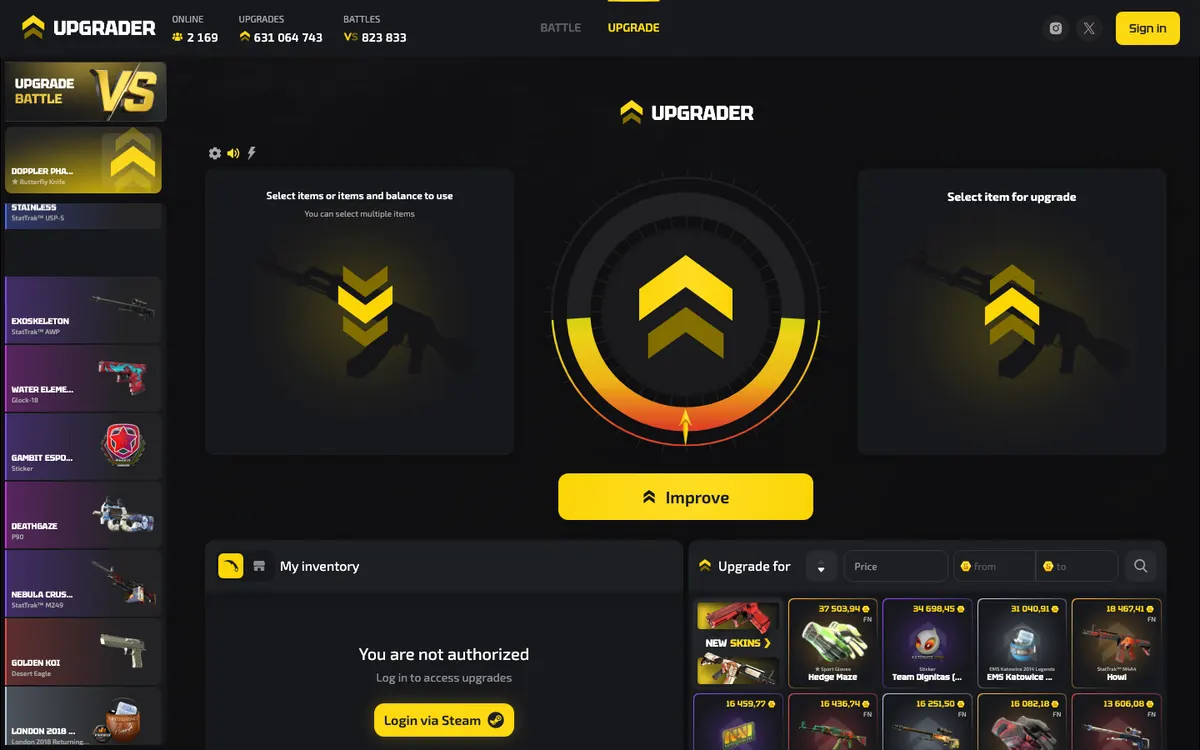
Choose the transaction that matches your goal
Skin websites can place item images, prices, balances and game controls close together. That visual similarity can hide an important distinction: you may be paying for an item, exchanging an existing item, or committing value to an uncertain result. Identify which action you are taking before considering whether the displayed value looks attractive. A familiar skin name and a prominent price do not tell you what the next button will do.
Direct buying: the item is the subject of the order
In a conventional direct purchase, you select a known item and agree to its price. Stock, payment checks and delivery conditions can still affect completion, but a random result does not decide which item you receive. A useful listing identifies the game, skin name, wear and relevant special characteristics. The checkout should explain what happens if the item becomes unavailable or delivery cannot be completed. This describes direct buying generally; it is not confirmation that Upgrader provides that checkout. If the interface cannot clearly explain what you are ordering, stop before funding it.
Upgrades: a selected target can still be an uncertain outcome
An upgrade generally involves committing an item or other permitted value for a chance at a target item. Selecting that target does not make it an order. A target valuation, input valuation and probability each describe different parts of the operation; none should be mistaken for a guaranteed purchase price. Upgrader offers Upgrade, but no numerical success rate or house-edge figure is established here. If your priority is obtaining a specific cosmetic within a fixed spending limit, repeated attempts cannot give you the same cost certainty as an agreed purchase price. See the game-mode guide for the distinction between modes.
Battles: participation is not a skin order
Upgrader’s Battles page allows users to create, join or watch battles. Those are participation choices, not evidence of a retail marketplace. An entry cost should therefore be evaluated as the cost of taking part, not as a quote for a pictured reward. Watching a result also says nothing about what a later participant will receive. For a buyer, the practical question remains simple: does confirming this action create an order for the exact skin, or does it enter a game? Do not proceed until the interface and rules make that distinction clear.
- For a particular skin: require an identifiable item, a disclosed total and a direct-purchase commitment.
- For an item exchange: inspect both what leaves your inventory and what you receive.
- For an upgrade or battle: recognise that you are choosing chance-based play, not a shopping shortcut.
- For a balance top-up: establish how that balance can be used before committing funds.
- For delivery: distinguish an item displayed on a website from an item actually received in your Steam inventory.
Compare the exact skin and the full cost
A skin name is only the starting point for comparing prices. Similar-looking listings can represent different wear, variants or individual items. Likewise, a website’s internal item valuation may serve an upgrade calculation rather than describe a price at which you can buy or sell. Upgrader has no confirmed direct-buy price list to quote. Use the checks below to assess any price you encounter, without assuming that a displayed valuation is an executable purchase offer.
Match wear, float and special characteristics
For CS2 items, wear categories describe condition, while float gives a more precise wear value. Items sharing a wear label can still look different. Ordinary gameplay does not progressively wear down a skin, so buying a cleaner example is an appearance choice rather than a way to delay deterioration. Pattern differences can also matter for some finishes, and stickers may distinguish otherwise similar items. StatTrak variants should not be compared indiscriminately with non-StatTrak versions. Rarity describes an item category, but rarity alone does not determine a fair asking price. Demand, appearance and the particular example all matter. If you care about the exact look, use the available inspection information rather than relying solely on a generic thumbnail. The skin glossary explains these terms in more detail.
- Confirm the game and complete item name rather than matching only the artwork.
- Compare the same wear category, then check float when the individual example matters.
- Keep StatTrak and other special variants separate from ordinary versions.
- Inspect pattern-sensitive finishes and stickered items individually instead of assuming equivalent appearance or value.
- Check whether the listing refers to a specific available item or merely a target type.
- Read any stated tradability condition before treating the item as ready for delivery.
Compare what you pay, not just the headline value
For any skin purchase, distinguish the seller’s price from the amount charged to your payment method and the cost of receiving the item. A lower headline figure is not necessarily a lower completed cost. Payment conversion, funding conditions or delivery charges may affect a transaction if the provider applies them. These are checks to perform, not claimed Upgrader fees. Do not fill in missing charges with assumptions from another marketplace, and do not treat an undisclosed fee as a fee of zero.
| Cost or value | What to establish | Mistake to avoid |
|---|---|---|
| Item price | The charge for the exact skin and variant you selected. | Comparing different wear or special versions as though they were identical. |
| Internal valuation | Whether the figure is a purchase price, exchange value or game input value. | Assuming every displayed item value is a price you can transact at. |
| Funding cost | The amount charged and the balance credited, including any disclosed conversion. | Equating a payment confirmation with ownership of a skin. |
| Delivery cost | Whether receiving the item has a separately disclosed charge or condition. | Judging affordability before understanding the withdrawal stage. |
| Steam Market comparison | The final purchase total and the fact that trading uses Steam Wallet funds. | Treating Steam Wallet funds and a third-party balance as interchangeable. |
| Chance-based spending | The value committed to participating, separate from any target’s valuation. | Calling repeated attempts a fixed purchase cost. |
The Steam Community Market states that purchases and sales use Steam Wallet funds, and its purchase dialog displays fee lines charged by Valve. That is a useful comparison point, not Upgrader’s pricing policy. When comparing routes, keep the item specification, payment environment and delivery conditions consistent. For a focused explanation of published charges and the distinction between prices and valuations, see Upgrader fees and prices.
Check payment availability before adding balance
Upgrader’s terms cover top-ups to an internal balance, but they do not provide a confirmed payment-method list, buying limits or processing timetable to quote here. A contractual reference to top-ups does not establish support for cards, bank transfers, cryptocurrency or skin funding. It also does not show which methods are available to a particular account or location. Before paying, read the actual funding screen and the conditions attached to the offered method. If your purpose is a skin purchase, confirm the purchasing route before adding a balance that may not serve that purpose. See deposits and withdrawals for the related distinctions.
Read the conditions for the method actually offered
As general payment guidance, different methods require different checks. For a card payment, inspect the currency, total charge and payment recipient before authorising it. For a bank transfer, follow the displayed recipient and reference instructions rather than details sent by an unsolicited contact. For cryptocurrency, the asset, network and destination must match the provider’s instructions; do not assume a mistaken transfer can be reversed. If item funding is offered, inspect the outgoing Steam trade as carefully as a cash payment. None of these examples confirms that Upgrader accepts the method. They explain what to check if a method is genuinely presented in the service’s own interface.
- Check the payment currency and the amount that will actually reach the internal balance.
- Read any minimum, maximum, conversion or processing condition shown for the selected method.
- Establish whether identity or account checks must be completed before using or withdrawing items.
- Understand cancellation and refund conditions before authorising payment.
- Save the transaction reference and confirmation without sharing payment credentials.
- Do not send money or skins to a person who claims a private transfer will unlock your purchase.
An internal balance is not a bank deposit or a delivered skin
Upgrader’s operator expressly states that it does not accept user funds as a deposit, accrue interest on the internal balance or provide safekeeping of funds. Read the balance as a platform mechanism governed by the terms, not as a bank account. A successful top-up confirms funding, not a completed skin purchase, item allocation or Steam delivery. The terms also cover automatic sale of items, so do not assume every item can remain stored indefinitely under conditions of your choosing. Read the relevant storage, withdrawal and automatic-sale provisions before leaving items on the platform. These distinctions matter even when the interface presents balance and inventory together.
Understand delivery through Steam before confirming
Steam Trade Offers package the items proposed for both sides of an exchange. This lets you inspect what you give and receive before accepting. Upgrader’s terms cover item withdrawals, but they do not establish a public Steam-delivery timetable or a detailed delivery workflow here. The sequence below is therefore a general Steam-delivery checklist, not a promise about Upgrader’s screens, bots or processing time. Apply it only after establishing that the transaction provides the item you want. Signing in, funding, allocating an item and receiving it in Steam are separate stages.
- Confirm the Steam account receiving the itemCheck that you are using the intended Steam account before beginning. Similar profile names and avatars are not reliable identifiers on their own. Upgrader supports Steam sign-in, but a Steam authentication flow is not an endorsement of the service by Valve. Its terms explicitly state that the platform and operator are not affiliated with or authorised by Valve or Steam.
- Check trade readiness and any requested trade linkReview account notices and trading restrictions directly in Steam. If a service requests a trade URL, obtain it from your own Steam trade-offer settings and check that it belongs to the receiving account. A trade URL helps route an offer; it is not your password and does not authorise acceptance. Never provide login credentials or authenticator codes to a support contact.
- Save the transaction’s item detailsBefore confirming, retain the complete item name, relevant wear or variant, quoted total and transaction reference. If you selected an individual example, preserve its identifying inspection details where available. This gives you something meaningful to compare against the incoming offer. A generic screenshot of a skin category may not establish which specific item you expected to receive.
- Inspect the actual Steam offerRead the offer in Steam rather than trusting a website notification or chat message. Check the items on both sides, the item characteristics available for inspection and any warning shown by Steam. For a purchase represented as paid in full, an unexpected demand for additional outgoing items needs clarification before acceptance. A familiar avatar does not prove an offer is correct.
- Review any required confirmationWhen Steam requires a confirmation, treat it as another opportunity to inspect the action, not a formality to approve automatically. Steam Guard’s mobile authenticator provides authentication for trade and market confirmations. Do not approve a trade you did not initiate, and do not follow instructions to cancel and replace an offer without checking the replacement independently against the original transaction.
- Verify completion in SteamCheck Steam’s trade status and the receiving inventory rather than relying only on a completed label elsewhere. If Steam displays a hold or restriction, read that notice before assuming the item is missing. Keep the order reference and trade details until the transaction is resolved. If something differs from the agreed item, stop further transfers while you investigate.
Separate a Steam hold from a website processing delay
A Steam trade hold means Steam retains items for a period before delivery, a protection intended to give owners of compromised accounts time to cancel fraudulent trades. That is different from a service still preparing an offer, an unavailable item or an account-level restriction. There is no single delivery estimate that safely describes all of those situations. Follow the status shown by Steam for Steam-side holds, and seek an explanation of platform-side statuses through the service’s published support route. Never send an extra payment to someone claiming they can bypass a Steam hold. For more on account protection and offer checks, read Steam trade safety.
Troubleshoot the stage that actually failed
| Situation | What to check | Safe next step |
|---|---|---|
| You cannot find a buy button | Whether the screen is an upgrade target selector, a battle page or a genuine item listing. | Do not fund an unrelated mode. Establish that direct purchasing exists before proceeding. |
| Payment is recorded, but there is no skin | Whether you completed only a top-up, created an item order or requested a withdrawal. | Use the payment and transaction references to identify the missing stage before paying again. |
| No Steam offer has arrived | The transaction status, intended Steam account, any entered trade URL and Steam account notices. | Correct confirmed account details and ask about the existing transaction rather than creating duplicate requests. |
| Steam shows a hold | The exact hold notice and trade status inside Steam. | Follow Steam’s displayed conditions. Reject paid bypass offers or requests for authentication codes. |
| The offered item looks different | Its complete name, wear, special variant and individual characteristics against the order record. | Do not accept an unexplained substitution. Preserve the offer and transaction details for clarification. |
| Someone requests an extra verification transfer | Whether the request exists in the service’s own interface and matches the original transaction. | Stop. Do not send skins, credentials or funds in response to an unsolicited private message. |
A useful support request describes the failed stage without exposing account secrets. Include the item name, transaction reference, approximate sequence of events, current status and relevant screenshots with sensitive details removed. For a Steam issue, include the offer identifier or visible error where appropriate. Do not include your password, recovery information, authentication codes or full card details. Avoid repeatedly funding the account or accepting replacement offers while the original problem remains unexplained; doing so can make the transaction history harder to untangle. The support guide explains what to prepare before seeking help.
Set purchase boundaries before choosing an item
Write down the item characteristics you actually need and the total you are comfortable spending. This makes it easier to reject a more expensive variant, an unclear payment route or a switch from shopping into chance-based play. A purchase budget is a ceiling, not a target to use up. Upgrader’s terms allow the operator to impose and change territorial, age-related and other restrictions, so Steam access alone does not establish eligibility. Check the rules applying to your location before using the service. If gambling is involved, it is 18+, carries a house edge and should never be used to recover previous spending.
- Define the skin, acceptable wear and any essential special characteristics before browsing.
- Set a total spending boundary that includes any disclosed funding and delivery costs.
- Decide whether you need the exact individual item or would accept an equivalent example.
- Keep shopping separate from upgrades and battles; do not turn an unavailable purchase into repeated attempts.
- Stop if costs, eligibility or delivery conditions remain unclear.
- Use the responsible-play guide if spending starts to feel difficult to control.
Before paying: a short buyer’s checklist
The decisive point is not whether a website displays the skin you want. It is whether the transaction clearly commits to delivering that skin at an understood total cost. Use this final check before authorising a payment, item transfer or balance operation.
- Transaction: this is an actual purchase, not an upgrade attempt or battle entry.
- Item: the name, game, wear and relevant variant match what you want.
- Cost: the final charge and any disclosed funding or delivery conditions are understood.
- Payment: the method is genuinely offered to your account, not suggested in a private message.
- Delivery: you know the receiving Steam account and how to inspect the eventual offer.
- Restrictions: you have checked eligibility and any Steam trading notices.
- Evidence: you have saved the transaction reference and item details without exposing credentials.
- Decision: if any essential point remains unresolved, pause rather than fund first and investigate later.
Buying skins on Upgrader: frequently asked questions
No matching questions found.
Can I buy CS2 skins directly on Upgrader?
What are Upgrader’s skin prices and buying fees?
Does Upgrader accept cards, bank transfers or cryptocurrency?
Do I need a Steam trade link to receive skins?
How long does Upgrader skin delivery take?
Can I pay on Upgrader with Steam Wallet funds?
Is upgrading cheaper than buying the skin outright?
What should I do if the wrong skin appears in a Steam offer?
This independent guide is for informational purposes and is not affiliated with Upgrader.